Getting started with Tuvora
Install the app, sign in once, add a playlist, and you're watching. Here's the lay of the land.
1. Install
Tuvora is on Google Play — the TV build is in early access there:
- Open the listing for your device — phone / tablet or Android TV / Google TV — and tap Install.
- On a computer instead? Mac, Windows and Linux downloads are in the download row.
2. Sign in (optional, but you want it)
An account syncs your playlists and watch progress between your phone and your TV.
Phone
- The login screen is the first thing Tuvora shows on a fresh install: Sign In, Create Account, or Continue Without Account (your data then stays on the device only).
- Already past it? If you chose Continue Without Account you're signed in anonymously, so Settings → Account offers Sign Out — use that to get back to the login screen and attach a real account. Step-by-step, with screenshots: Android and iPhone & iPad.
TV — no typing needed
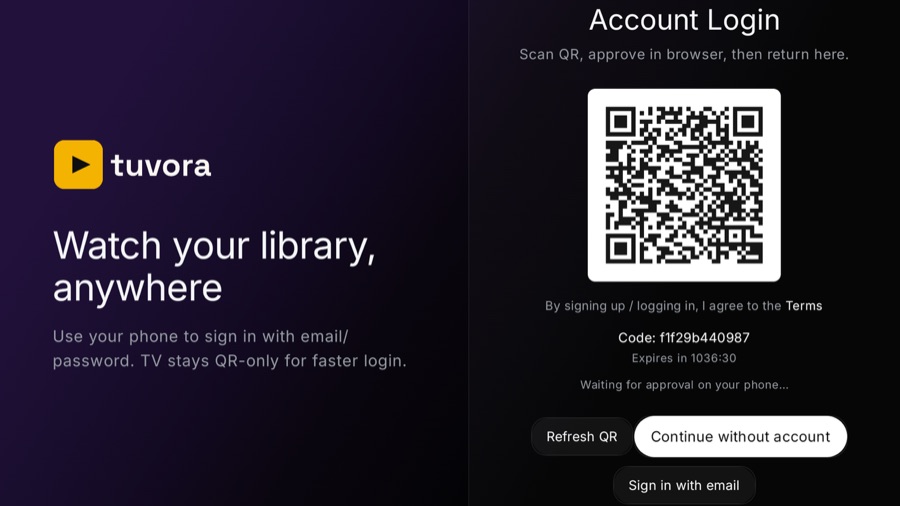
- Open Settings (bottom of the left sidebar). It opens on Account; press RIGHT to focus Sign In with QR — “Scan a QR code and complete email login on your phone” — and press OK.
- The screen reads Account Login / “Scan QR, approve in browser, then return here.” Scan the QR with your phone camera, approve the sign-in in the browser, and the TV logs itself in. The code lasts 5 minutes; Refresh QR issues a new one.
- Prefer the remote? Sign in with email at the bottom of that screen lets you type instead. Full walkthrough: the TV guide.
3. Add your playlist
Tuvora plays your content — add it as an M3U playlist, an Xtream Codes login, or a Stalker portal. Each has its own short guide.
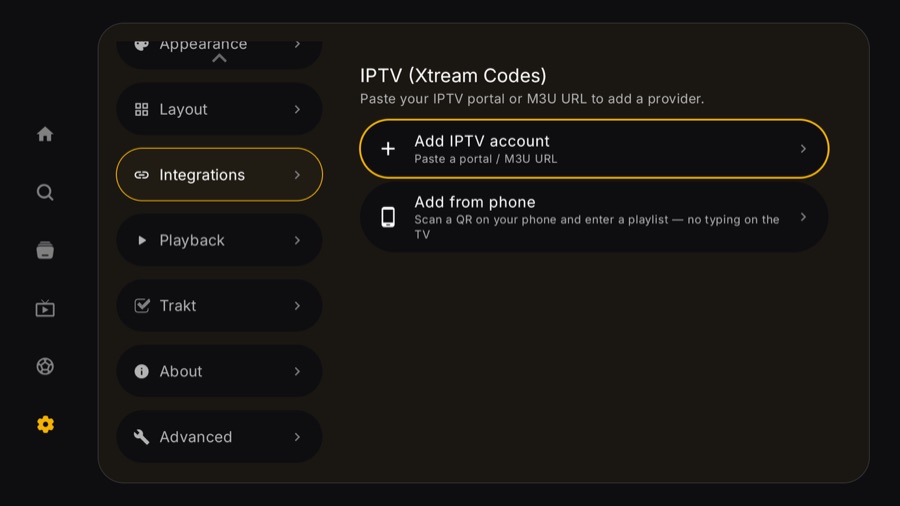
TV tip: the path that works is Settings → Integrations → IPTV (Xtream Codes) — the Add IPTV provider button on the IPTV tab only drops you at Settings → Account. Once there, pick Add from phone to scan a QR and type the playlist details on your phone instead of with the remote.
4. Finding your way around
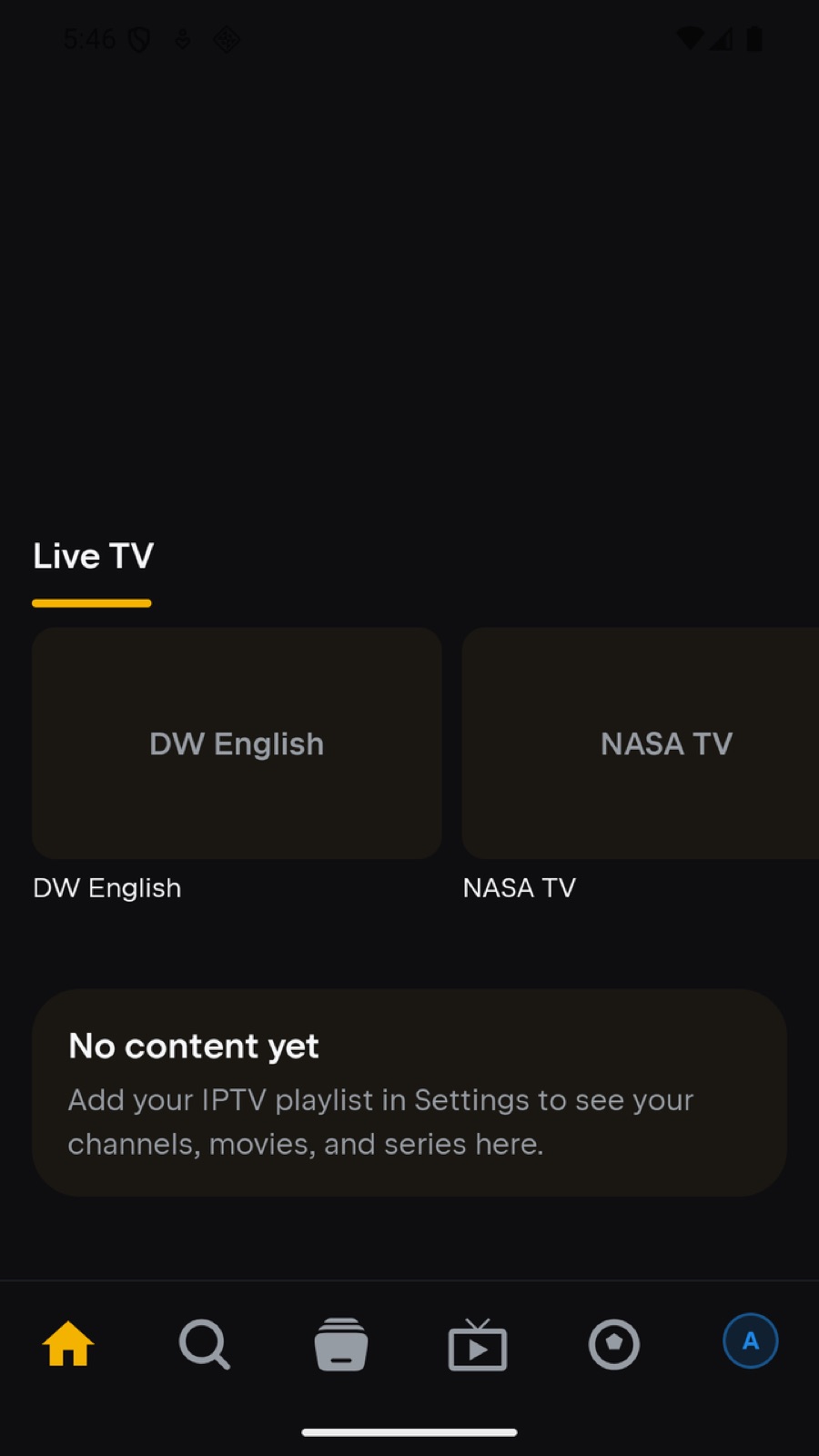
Phone — bottom tabs
- Home — continue watching + your content rows
- Search — search everything
- Library — your saved items
- IPTV — your playlists, with Live TV / Movies / Series sections and the guide
- Sports — the Sports centre: fixtures and events, matched to channels in your playlist
- Profile avatar — profiles & Settings
TV — left sidebar (D-pad)
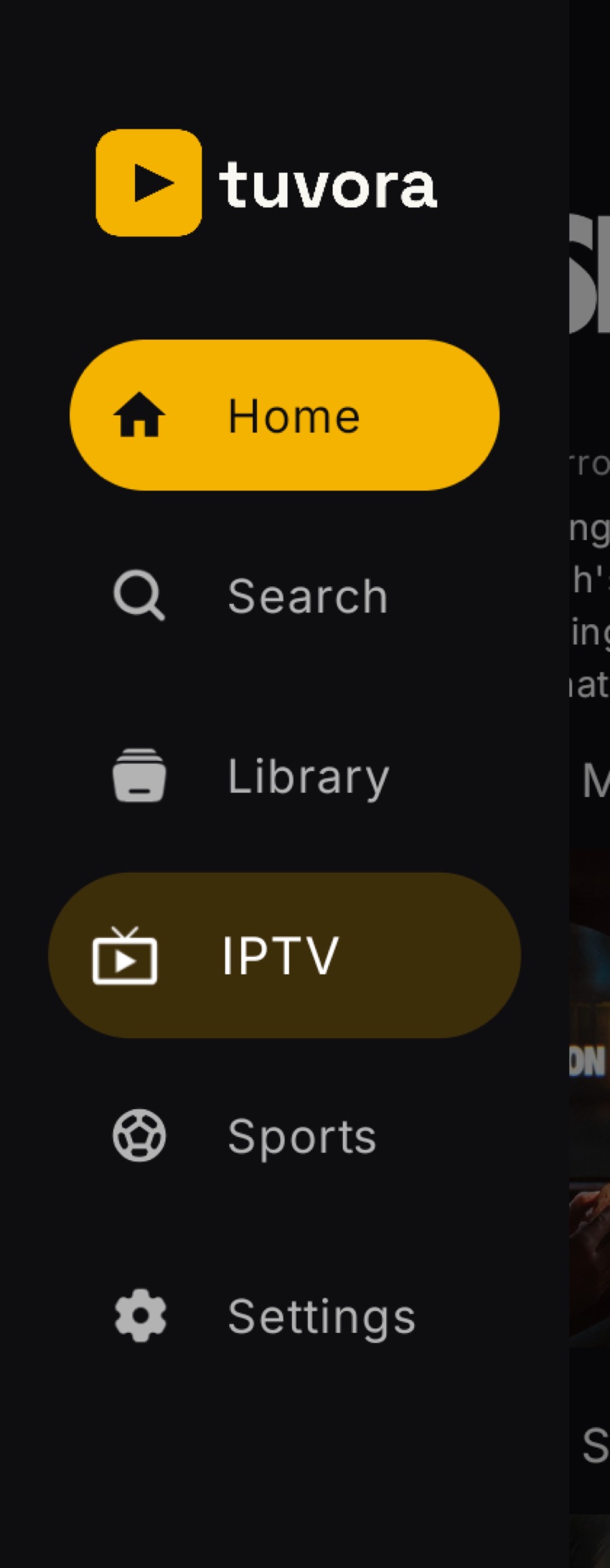
Press left to open the sidebar from anywhere: Home, Search, Library, IPTV, Sports, Settings. Inside IPTV you get the same Live TV / Movies / Series sections. Long rows scroll with the D-pad; back returns you to the sidebar.
5. If something's off
- Playlist trouble → check the matching guide's troubleshooting section first.
- Found a bug? Report it on GitHub — never include your server URL or password.